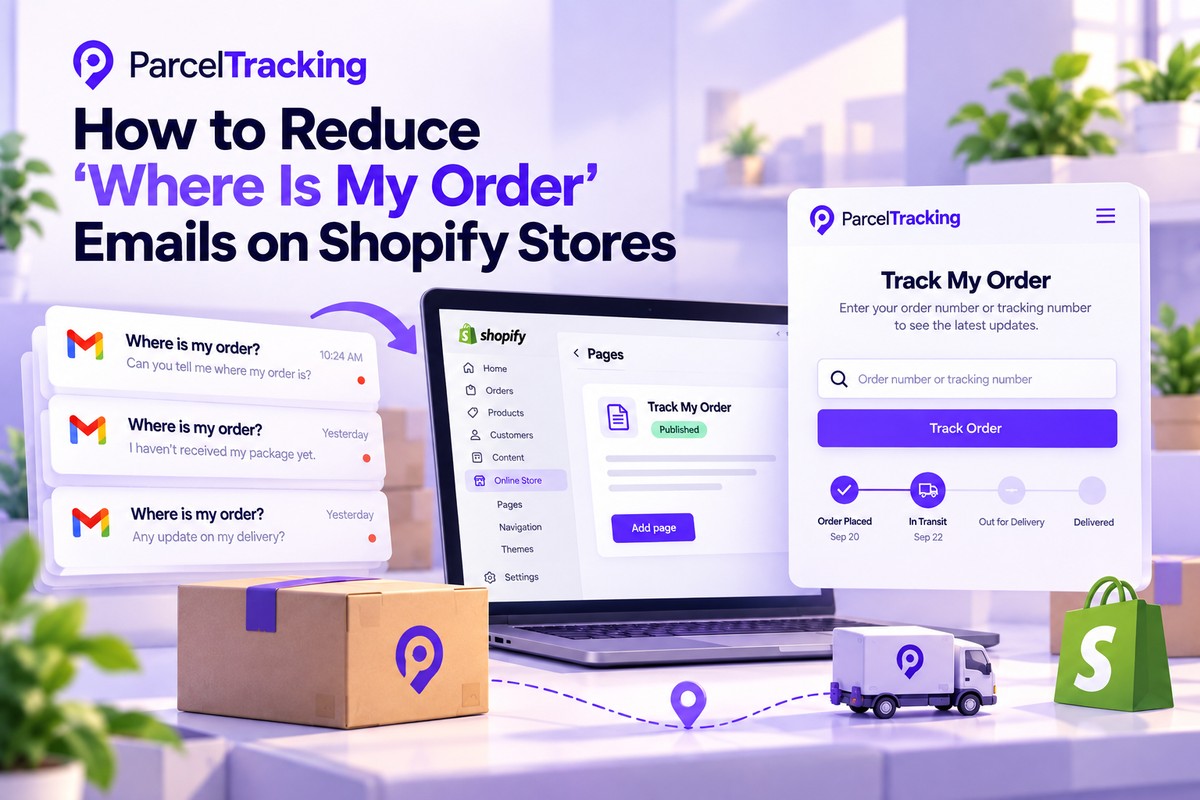
Your Shopify inbox can quickly fill with “Where is my order?” emails, making it harder for your team to keep up with real support requests.
Most of these messages are preventable when customers can easily see where their package is. Clear tracking updates, timely alerts, and a useful order-status page can answer questions before they reach your team.
WISMO often happens when customers feel left in the dark after placing an order. A delayed scan, vague delivery window, or missing update can turn curiosity into another support ticket.
The good news? Smart changes can make order updates easier to find and trust. That means fewer repeat emails for your team and fewer frustrating moments for customers.
Start with what WISMO actually means and why customers keep asking.
What Does WISMO Mean?
WISMO means “Where Is My Order,” the shorthand for customer questions about shipment status and delivery updates. It usually means customers want a quick update, not a long conversation with your support team.
Why Do WISMO Tickets Take Up So Much Support Time?
WISMO matters because your team may spend valuable time finding answers already sitting inside carrier tracking data.
For Shopify stores, these questions can become a steady stream of repetitive tickets, especially when order updates feel unclear or hard to find.
A few patterns make WISMO especially important:
- Peak season can turn the volume way up. Higher order volumes and shipping pressure can trigger sharp increases in WISMO questions around major shopping periods.
- Not every “Where is my order?” needs the same fix. A routine status check differs from a lost, damaged, or genuinely stuck package.
That last little distinction matters because routine questions can often be automated, while delivery problems usually need human attention.
How Many Support Tickets Are Actually WISMO?
WISMO can account for a significant share of ecommerce support volume, especially when customers lack clear, timely order updates.
What makes the number change?
| Factor | What changes |
| Ticket tagging | Some teams tag every order-status question as WISMO, while others use broader shipping categories. |
| Store type | Product category, order volume, delivery regions, and carrier mix can change WISMO volume considerably. |
| Seasonality | WISMO can rise when order volumes and shipping activity increase during major sales periods. |
The number that matters most: your own WISMO rate
| WISMO rate = WISMO enquiries ÷ total support tickets × 100 |
Example: 200 WISMO enquiries ÷ 1,000 total tickets = 20% WISMO rate
Track these four numbers each month:
- Total support tickets
- Total WISMO enquiries
- WISMO rate
- WISMO rate during peak periods
Shopify describes WISMO as one of the most common ecommerce customer enquiries, while Salesforce recommends measuring the category within your own support operation. For Shopify stores, the goal is to make your own WISMO number smaller over time.
Once you have that baseline, you can see which changes actually stop “Where is my order?” messages from reaching your team.
Why Do Customers Send “Where Is My Order” Emails?
Customers rarely email because they are impatient; they email because a specific information gap appears at a specific moment.
These are four common moments that can trigger a WISMO email:
- No tracking number is easy to find: When the tracking number is missing or buried, customers have no easy way to check where their order stands.
- The tracking status looks stuck: A “label created” status can sit unchanged for days, making it look like nothing is happening, even after movement begins.
- There is no delivery date to work from: Without an estimated delivery date, customers have no reference point for deciding whether their order is still on time.
- Tracking sends customers somewhere confusing: Even after checking, customers may face a confusing, unbranded third party carrier page that makes self-service harder than simply sending an email.
Every one of these four gaps can be closed without adding staff, which sets up the practical stack that follows.
How Can You Reduce WISMO Tickets on Shopify?
Reducing WISMO volume takes more than one fix; four layers work together to answer customers before tickets pile up.
A store can miss one or more of these layers, leaving routine order questions to reach support.
Here’s what each layer does, and which customer information gap it closes along the way:
| Layer | What it does | Fixes which root cause |
| Branded tracking page | Gives customers one clear place to check order and delivery status themselves. | No easy self-service |
| Proactive notifications | Sends tracking details and delivery updates before customers need to ask. | No tracking information / no ETA |
| Self-service deflection tools | Explains common tracking statuses and gives customers more ways to find answers. | Stalled scan confusion |
| Automating remaining tickets | Handles routine WISMO requests efficiently while keeping agents available for genuine problems. | Complex delivery issues |
Layer 1 in Practice: Building a Branded Track-Order Page
A branded tracking page is the foundation because customers need one clear destination whenever they want to check an order. ParcelTracking’s Shopify app provides a practical example, syncing fulfillment data and keeping tracking inside your store’s branded experience.
Set up your branded tracking page:
- Install the Shopify app
Add ParcelTracking to your Shopify store and open its tracking-page settings inside your admin. - Let your fulfillments sync automatically
The app reads Shopify fulfillments automatically, so tracking data appears without manual CSV exports or repetitive uploads. - Match the page to your brand
Add your logo, brand colour, page title, subtitle, and optional custom HTML to make tracking feel familiar. - Choose how customers find orders
Let shoppers search by order number or tracking number, with optional email verification. - Add tracking to your store navigation
Use the built-in option to place the tracking link directly into your header and footer menus. - Test before sending shoppers there
Paste a real tracking number into the built-in lookup tool and check the live status timeline before publishing.
A branded Shopify tracking page matters because customers stay on your store instead of being sent to another carrier website. A live event timeline also shows what has happened, making “nothing is happening” feel much less mysterious.
Once the page is ready, your shipping notifications should point customers toward the same tracking destination.
Layer 2 in Practice: Proactive Notifications That Beat the Email
Proactive notifications answer the WISMO question before customers ask, giving them useful updates before support becomes their next stop.
Then keep your five notification milestones:
| Notification | What the customer needs to know | How it prevents WISMO |
| Order confirmed | Confirm the order was received and is moving into fulfillment. | Removes uncertainty immediately after purchase. |
| Order shipped | Include the tracking link directly so customers can check progress without hunting for it. | Gives customers an immediate way to find shipment information. |
| Out for delivery | Tell customers when their package is on the way for delivery. | Reduces questions about whether an order is arriving that day. |
| Delivered | Confirm when the carrier marks the package as delivered. | Removes uncertainty after the final delivery scan. |
| Delay or exception | Tell customers when shipment progress changes or an exception appears. | Prevents silence from turning a delivery issue into another email. |
Keep notifications and tracking connected: Every shipping update should lead customers toward the same tracking experience they already know. Sending customers to a generic carrier page creates a different experience from the branded tracking page you built earlier.
ParcelTracking’s Notifications feature supports push, email, and in-app alerts for selected tracking events across supported carriers.
The better setup: Shipping email → branded tracking page → live shipment timeline
Use shipment notification alerts when you want selected tracking events delivered through push, email, or in-app notifications.
How Do You Measure WISMO Reduction?
The clearest way to measure WISMO reduction is comparing shipping-status ticket volume before and after changes over matched time windows.
| Step | What to do | Why it matters |
| 1. Establish a baseline | Tag or filter existing tickets for shipping-status questions across a consistent two-to-four-week period. | This shows your starting WISMO volume before anything changes. |
| 2. Change one layer at a time | Introduce each major improvement separately where practical, rather than changing everything simultaneously. | You can identify which change actually reduces incoming WISMO volume. |
| 3. Measure the same category again | Re-measure shipping-status tickets across an equivalent period after each major change takes effect. | Matching the time window makes before-and-after comparisons more meaningful. |
| 4. Watch tracking-page usage | Use your analytics data to compare tracking-page visits with orders shipped. | Low usage can signal poor visibility rather than weak customer interest in self-service. |
A simple monthly scorecard can include:
- Total support tickets
- WISMO tickets
- WISMO rate
- Orders shipped
- Tracking-page visits
- Tracking visits per shipped order
Because WISMO definitions vary between stores and support systems, external benchmarks are difficult to compare reliably. Your own before-and-after change is the useful number, especially when measured consistently across equivalent periods.
How Can You Reduce WISMO Tickets in 30 Days?
A realistic WISMO reduction plan starts with measurement, fixes the tracking foundation, then checks whether support volume actually changes.
Week 1 — Baseline and audit
- Measure current WISMO volume: Tag or filter shipping-status tickets from the previous two to four weeks for a clean baseline.
- Audit your tracking journey: Check whether customers have a dedicated tracking page and whether they can find it from your store navigation.
- Check your tracking data: Confirm fulfilled orders receive usable tracking information, since Shopify uses tracking numbers across status pages and shipping notifications.
Weeks 2–3 — Fix the foundation
- Set up Layer 1: Create or improve a branded tracking page where customers can find shipment status without contacting support.
- Connect Layer 2: Make your shipping notifications point customers toward the same branded tracking destination used across your store.
- Check the customer journey: Test the complete path from shipping notification to tracking page and confirm every link takes customers somewhere useful.
Week 4 — Measure and adjust
- Compare WISMO volume: Measure the same ticket category against your Week 1 baseline using an equivalent time window.
- Check tracking-page visibility: Compare tracking-page visits with orders shipped to see whether customers are actually finding the page.
- Fix weak visibility first: If usage remains low, improve navigation and notification links before deciding the tracking experience failed.
Once Layers 1 and 2 are working properly, add self-service tools and support automation to handle the remaining questions more efficiently.
Want Fewer WSMO Emails? Try ParcelTracking
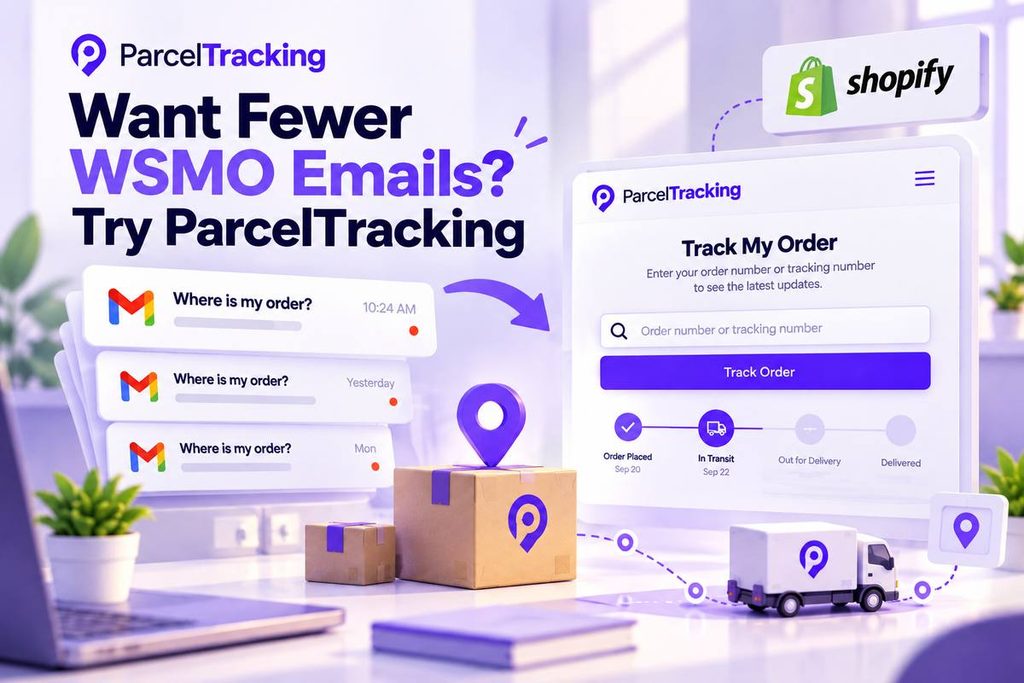
Give customers one clear place to check their orders, while keeping shipping updates connected to the same branded experience.
Start with the part customers see first, then connect every shipping update back to it.
What to highlight:
- Create a branded tracking experience
Send customers to a tracking page that matches your store, instead of leaving them to hunt through carrier websites. - Keep every shipment easy to follow
Let customers check order and tracking details from one familiar destination whenever they need an update. - Connect notifications to tracking
Use shipment notification alerts to send timely updates that lead customers back to the same tracking experience. - Make tracking easier to find
Add your tracking page to your Shopify store’s navigation so customers can find order updates without contacting support.
Set up a branded Shopify tracking page with ParcelTracking
Final Thoughts
WISMO tickets are largely preventable when customers can find clear, useful order information without contacting support. The highest-leverage first step is connecting your tracking page and notifications so both parts work together seamlessly.
See how the first layer works on your Shopify store before tackling anything more complicated.
Add a branded Shopify tracking page with ParcelTracking and give customers one easy place to track orders without contacting support.
FAQs
- What does WISMO mean in ecommerce?
WISMO means “Where Is My Order,” the shorthand for customer questions about shipment status and delivery updates. These questions usually ask whether an order shipped, where it is, or when delivery is expected.
- What percentage of support tickets are WISMO?
WISMO can represent a significant share of ecommerce support volume. Gorgias reports that WISMO accounts for about 18% of incoming requests on average, while the percentage varies by store, season, and support classification.
- Why do customers ask where their order is if it is already shipped?
Customers may still ask because tracking information, delivery estimates, or updates are difficult to find or understand. A shipped order can still create uncertainty when customers cannot easily see what happens next.
- Does a branded tracking page actually reduce WISMO tickets?
A branded tracking page can reduce WISMO by giving customers one clear place to check their shipment. It works best when customers can easily find it through store navigation and shipping notifications.
- What’s the difference between a WISMO ticket and a real delivery problem?
A WISMO ticket usually asks for an order-status update without reporting a confirmed delivery issue. A real delivery problem involves situations such as a lost, damaged, or genuinely stuck shipment.
- How long does it take to see a drop in WISMO tickets after making changes?
Measure WISMO over an equivalent post-change period before deciding whether ticket volume has changed. Comparing matched time windows against your baseline gives a clearer result than judging changes after only a few days.
- Can proactive notifications fully replace a tracking page?
No, proactive notifications and a tracking page work together as one connected system, rather than replacing each other. Notifications bring customers to the tracking experience, while the page gives them somewhere useful to check.
- What’s the first thing to fix if WISMO tickets aren’t dropping after setup?
Check whether customers can actually find and use the tracking page before changing anything else. Low tracking-page visits can signal a visibility problem rather than a problem with customer demand for self-service.
Leave a Reply